Install and Setup R
If you have used R or RStudio before, please uninstall both R and RStudio and follow the guide below to install the latest versions. Otherwise, Quarto may not work properly with older versions.
Make sure:
- Your R version is 4.6.1 or higher. Note that the latest version of R is 4.6.1 as of July 2026, which we will use in this tutorial and throughout Term 1.
- Your RStudio version is 2026.07.1+147 or higher.
If you switch to a new laptop later on, please return to this tutorial and reinstall R and RStudio following the same procedures.
1 Installation of R
1.1 For Windows computers
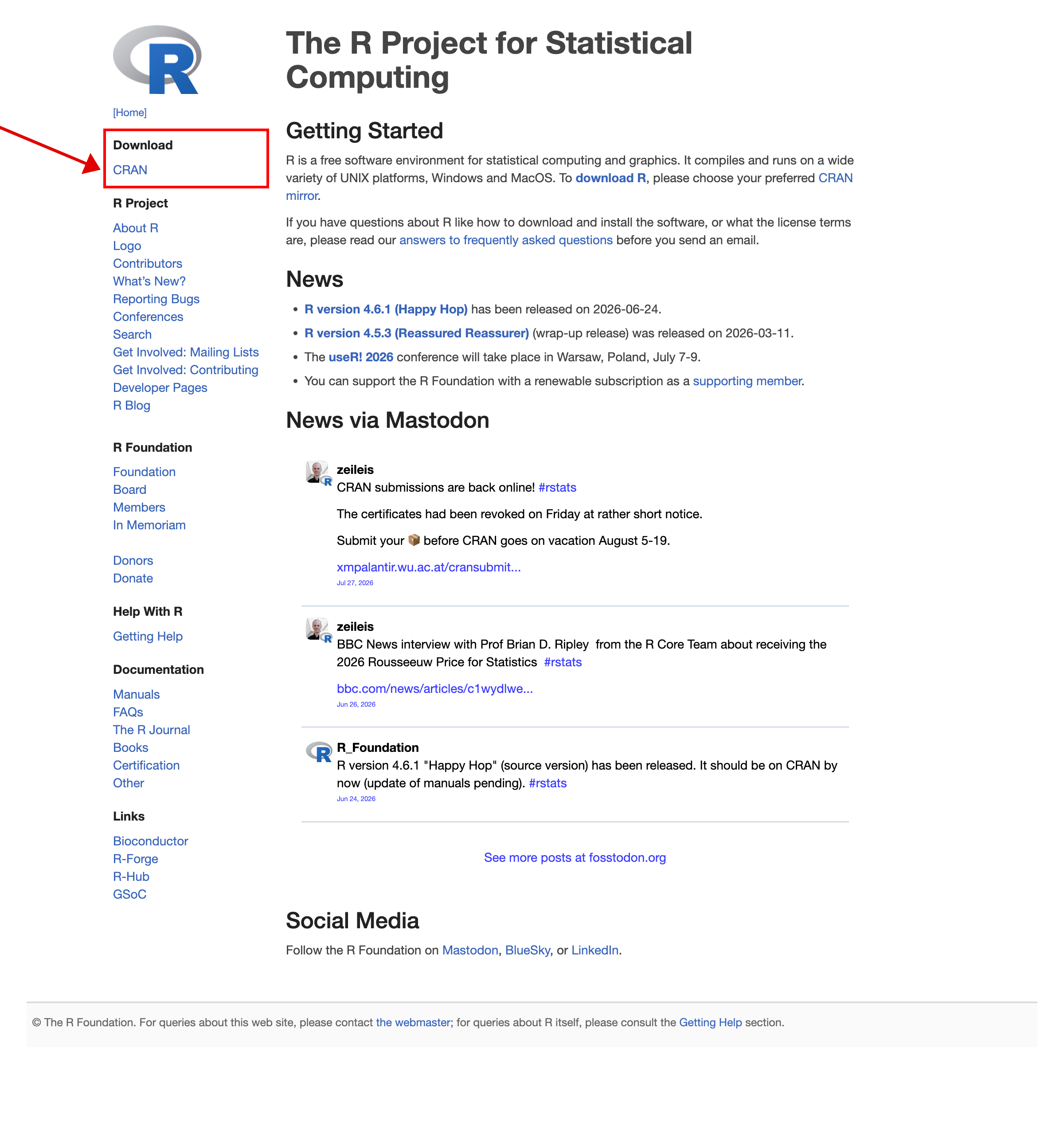
- Go to R’s official website at this link.
- Click
CRANunder the Download section.
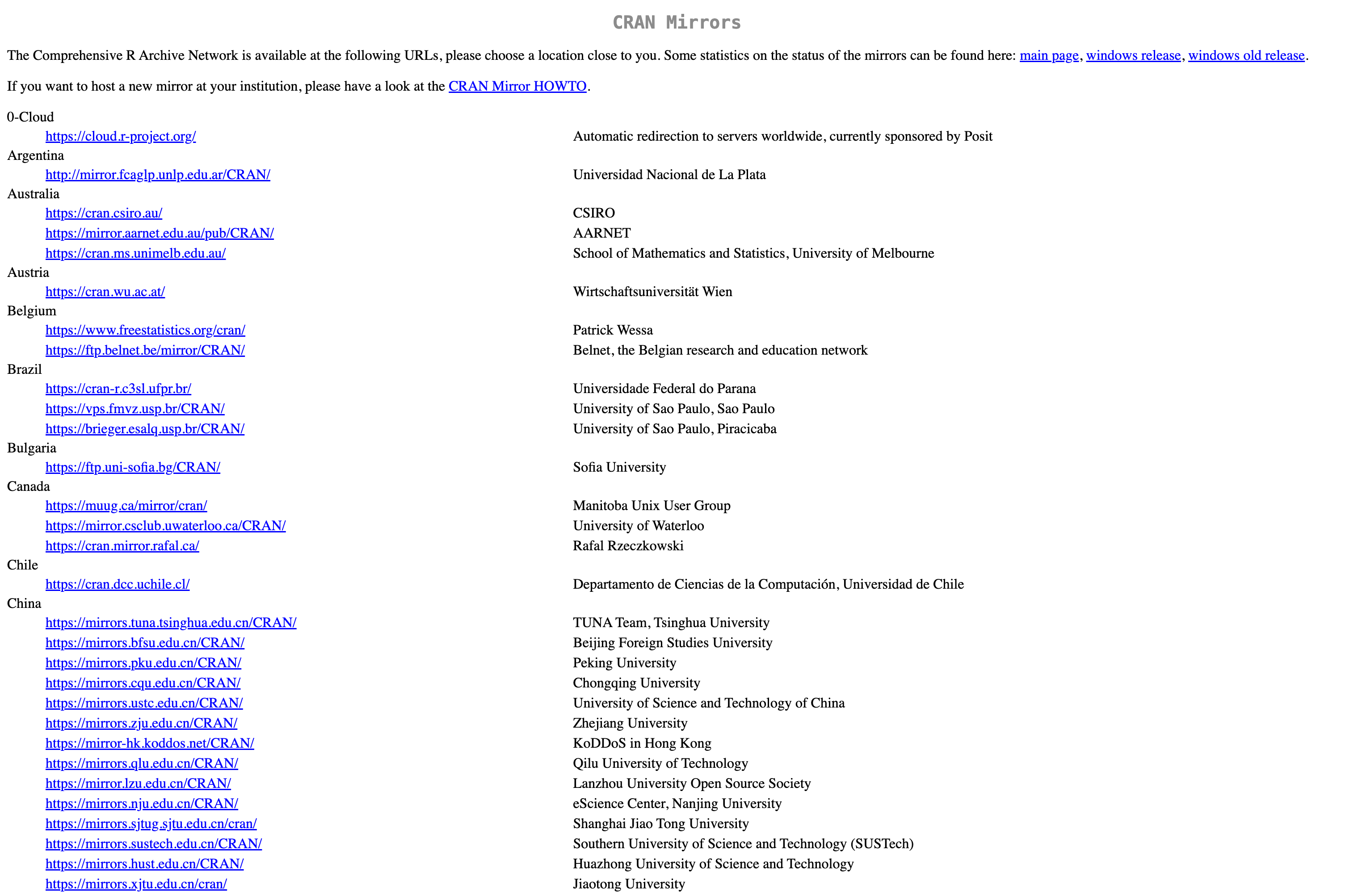
- You will see different mirrors for R download. These mirrors store the same installation files on different servers in various locations. Simply click any mirror.
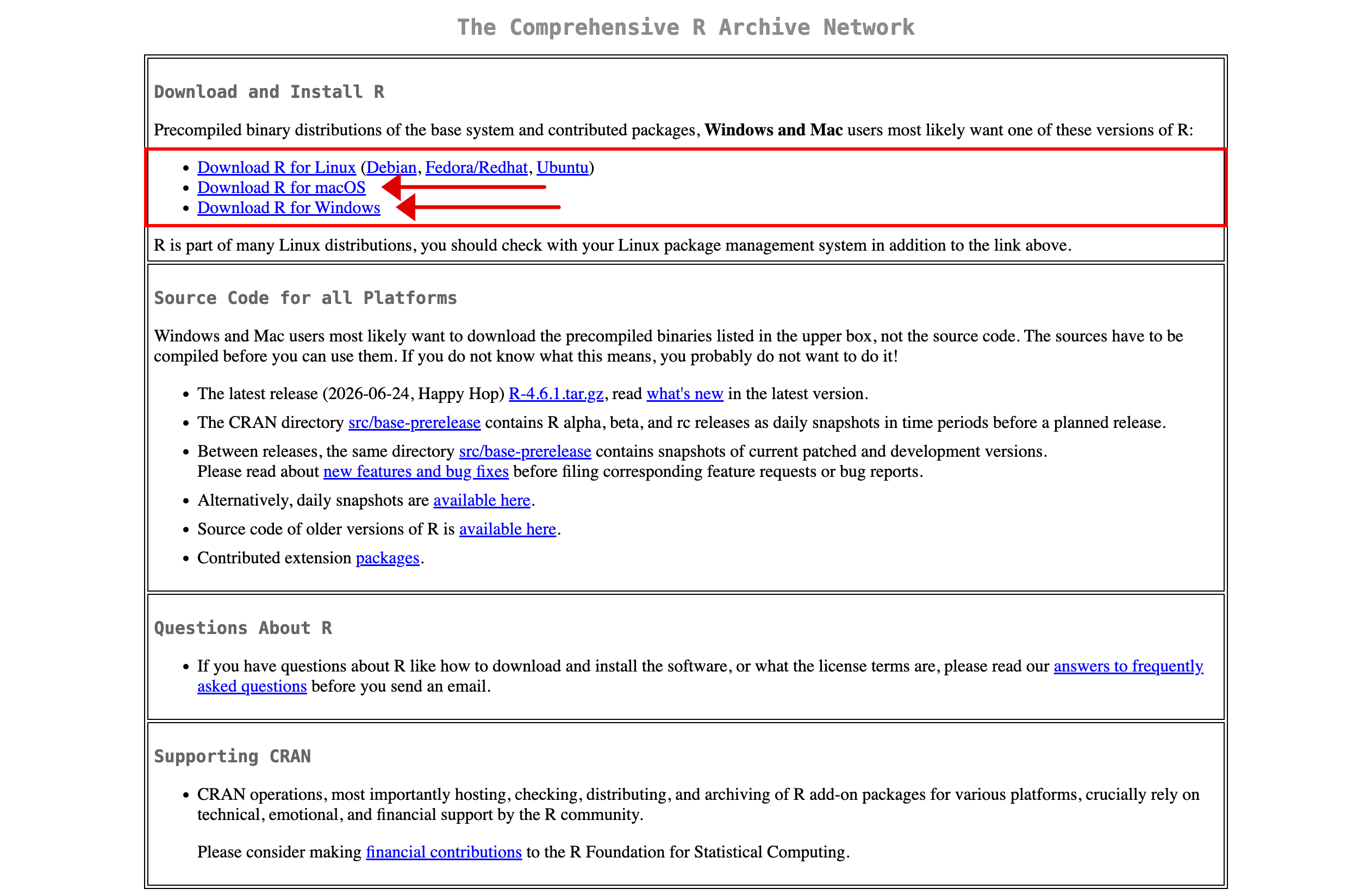
- Click
download R for Windowsfor installation files for Windows computers.
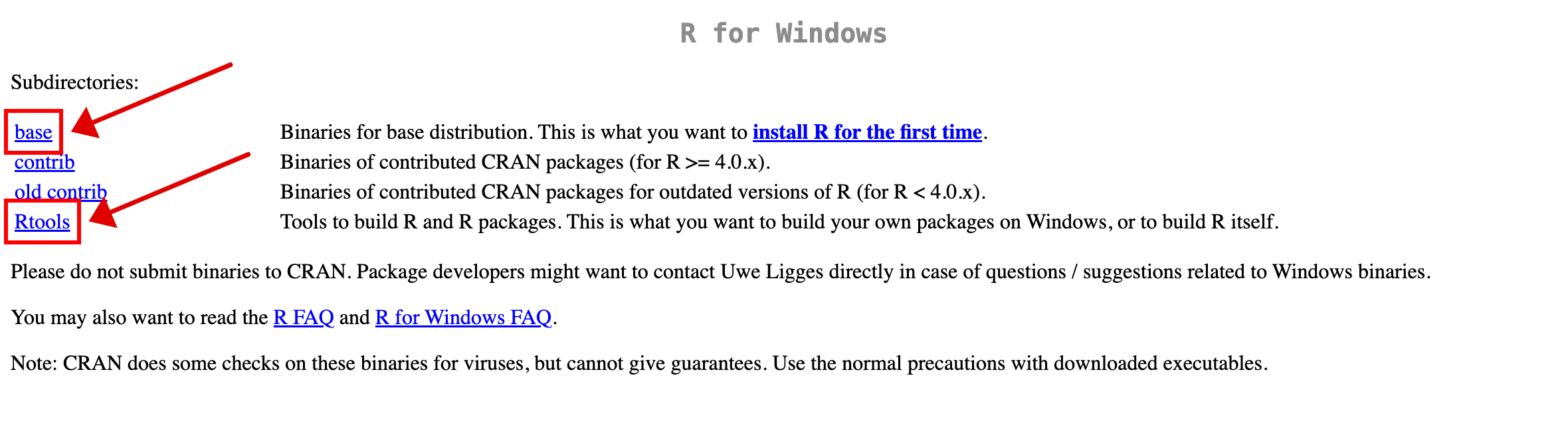
- Download and install (1)
baseand (2)Rtools. It is recommended to use the default options during installation.- Note:
baseis the R program, andRtoolsis a developer tool to compile/install R packages. On theRtoolspage, choose the version that matches your R release; the page states which R versions eachRtoolsrelease supports. - It is highly recommended to change your system language to English before proceeding, or you may encounter unexpected bugs later.
- Note:
- Click this link to download and install the Quarto CLI, a standalone command-line publishing tool.
1.2 For Mac computers
- Go to R’s official website at this link.
- Click
CRANunder the download section.
- You will see different mirrors for R download. These mirrors store the same installation files on different servers in various locations. Simply click any mirror.
- Click
download R for macOSfor the download file.
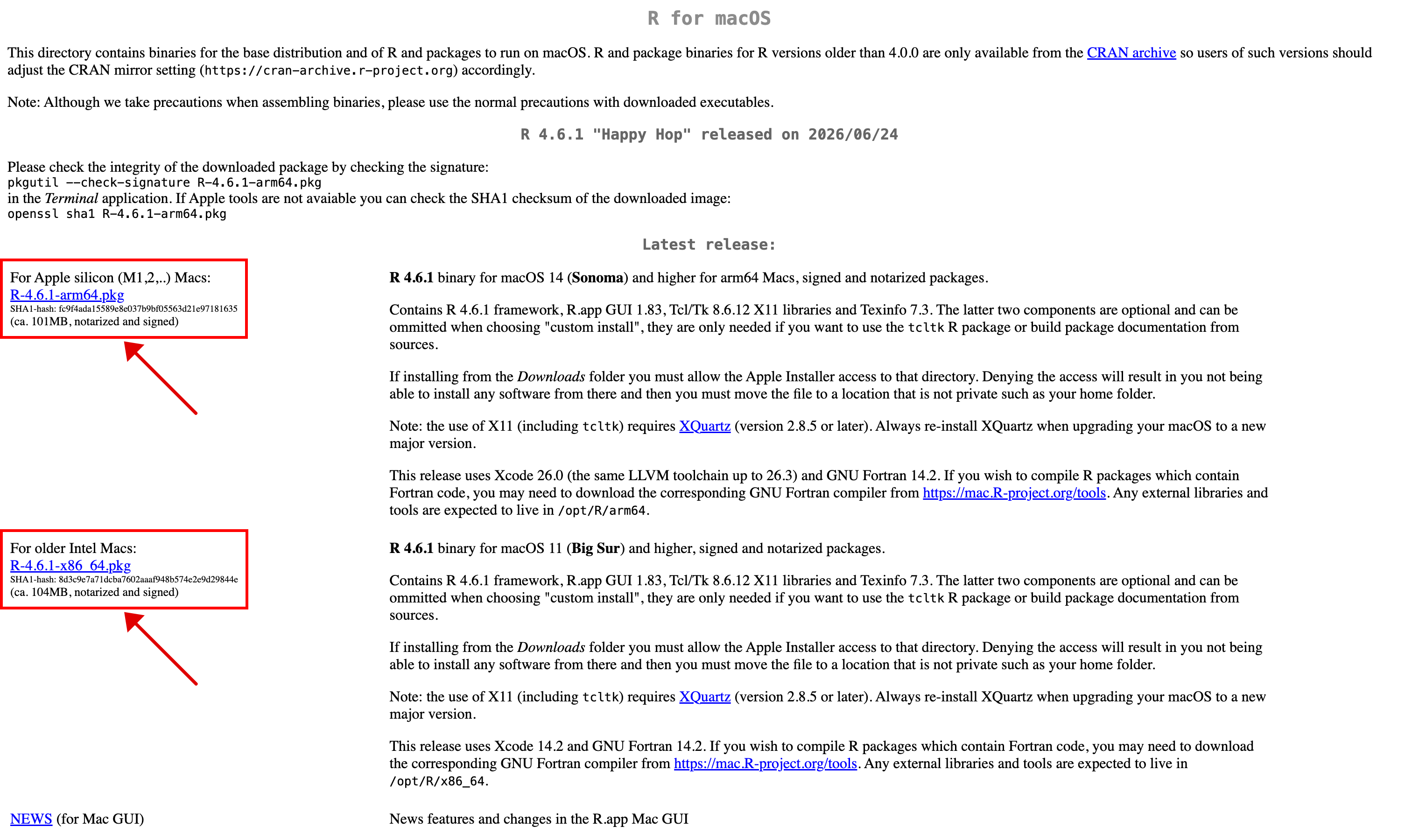
- Download the correct
.pkgfile to install R, whereX.X.Xis the version number (4.6.1 at the time of writing):- If you use an Apple silicon chip such as M1, M4, etc., download
R-X.X.X-arm64.pkgunder “For Apple silicon (M1,2,..) Macs”. This build requires macOS 14 (Sonoma) or higher. - If you use an Intel-based CPU, download
R-X.X.X-x86_64.pkgunder “For older Intel Macs”. This build requires macOS 11 (Big Sur) or higher. - Refer to this link if you are unsure whether you have an Intel or Apple silicon chip.
- If you use an Apple silicon chip such as M1, M4, etc., download
- Click this link to download and install the Quarto CLI for macOS.
2 Install RStudio
RStudio is where we will write our R code. Please install RStudio by following the steps below.
- Go to Posit’s download page here. RStudio is now developed by Posit, so the page is hosted on Posit’s website.
- Under RStudio Desktop, click
Downloadin the free Open Source Edition column, notBuy nowunderRStudio Desktop Pro. This takes you to the Direct Downloads (Open Source) table for the RStudio IDE, where you should take the.dmgfile for Mac or the.exefile for Windows. Ignore the Direct Downloads (Commercial) table further down the page, which is for RStudio Desktop Pro. - After downloading the installation file, follow the instructions to complete the installation. It is recommended to use the default settings.
- After installation, you can find RStudio in the Applications folder on Mac or the Start menu on Windows.
3 Check success of installation
3.1 Check R and RStudio are properly installed
Please follow these steps to ensure you have successfully installed R and RStudio:
- Step 1: Launch RStudio from your computer. Check if you see the following screen without any error messages.
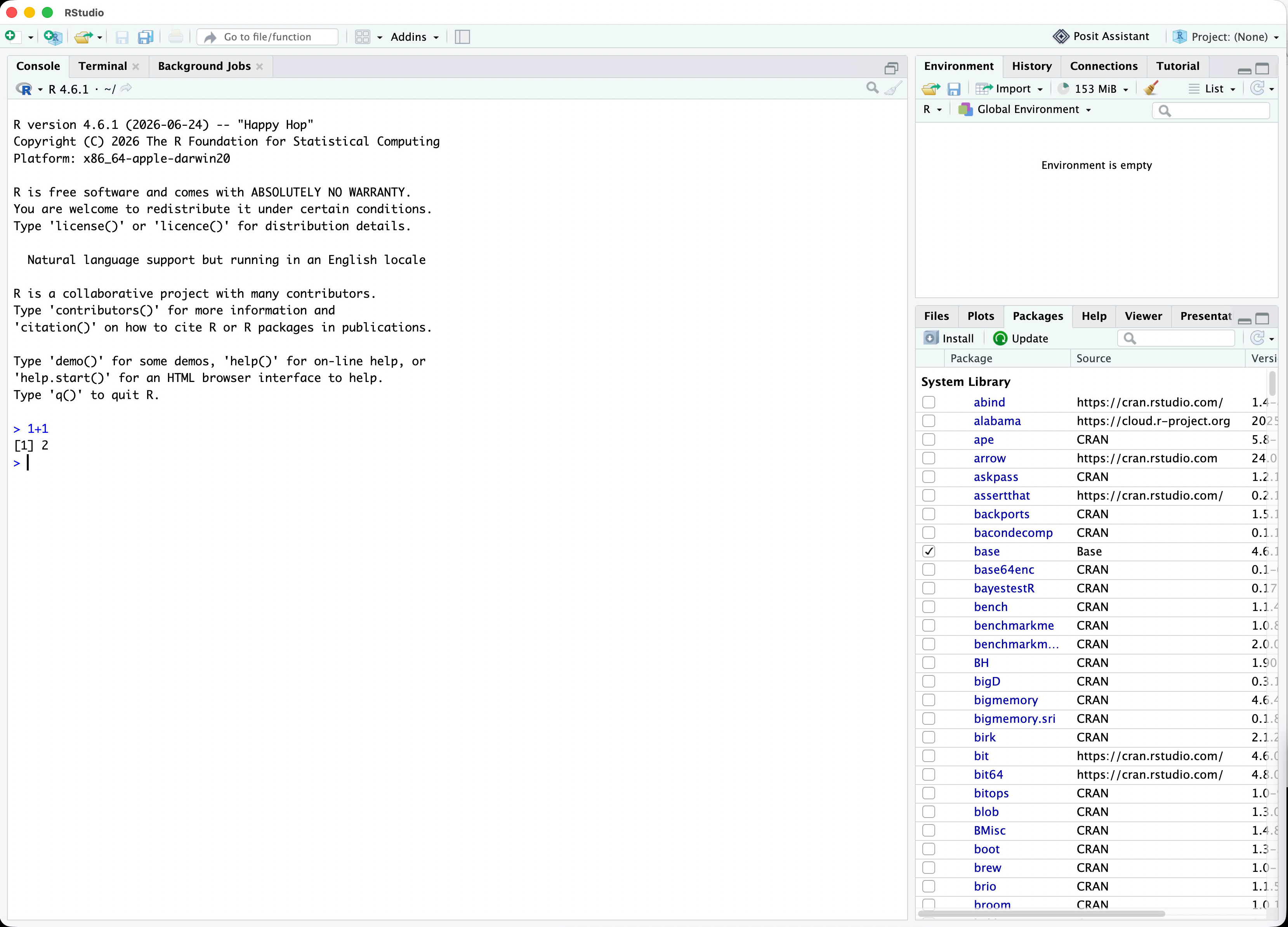
- Step 2: As shown in the picture, type
1+1after the>prompt and pressEnter. Check if you see the output2.
If there are no error messages and you see the expected output, congratulations! You have successfully installed R and RStudio.
3.2 Check Quarto is properly installed
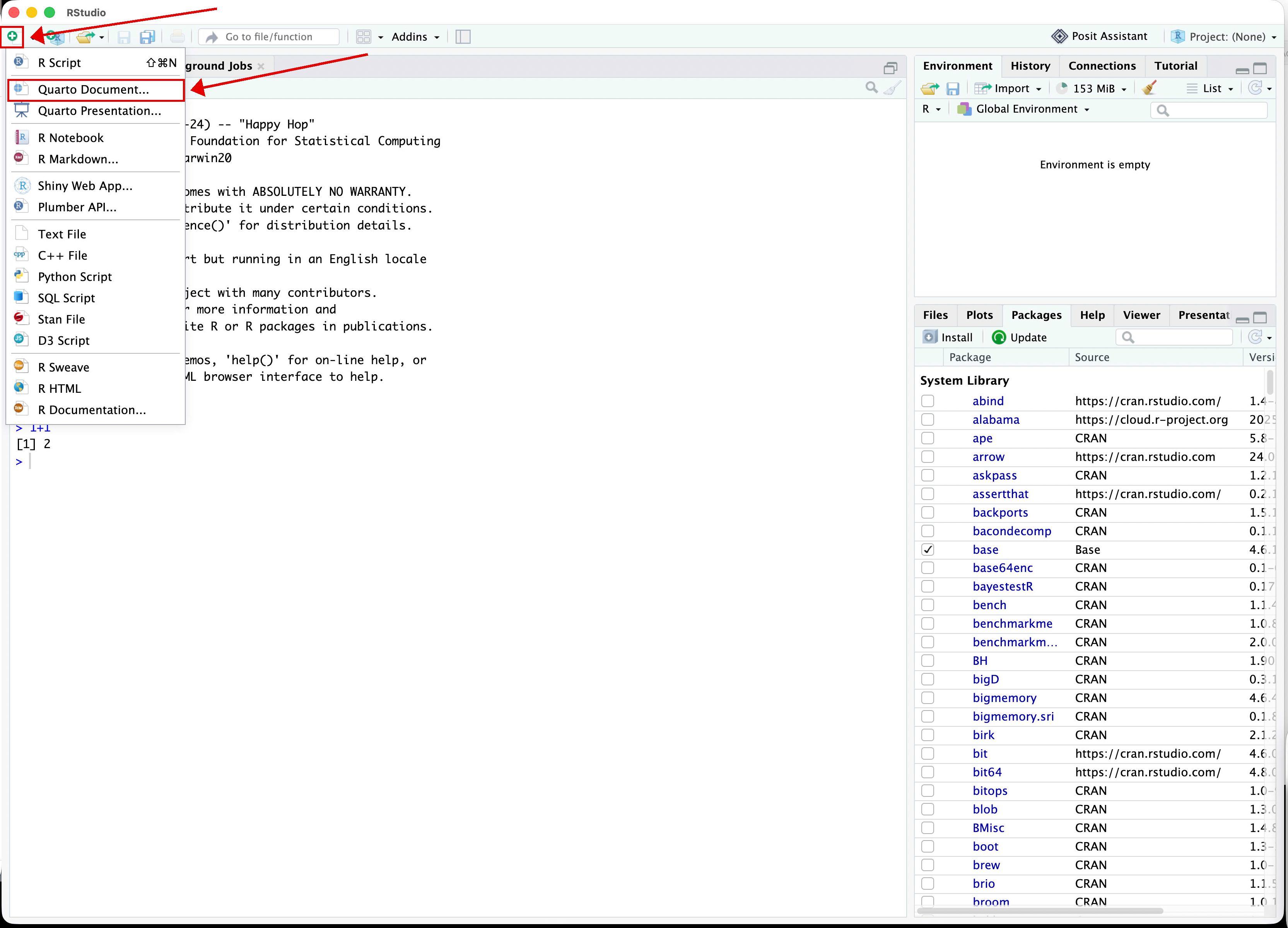
- Step 1: Click the green plus sign (highlighted below) and select
Quarto Document.
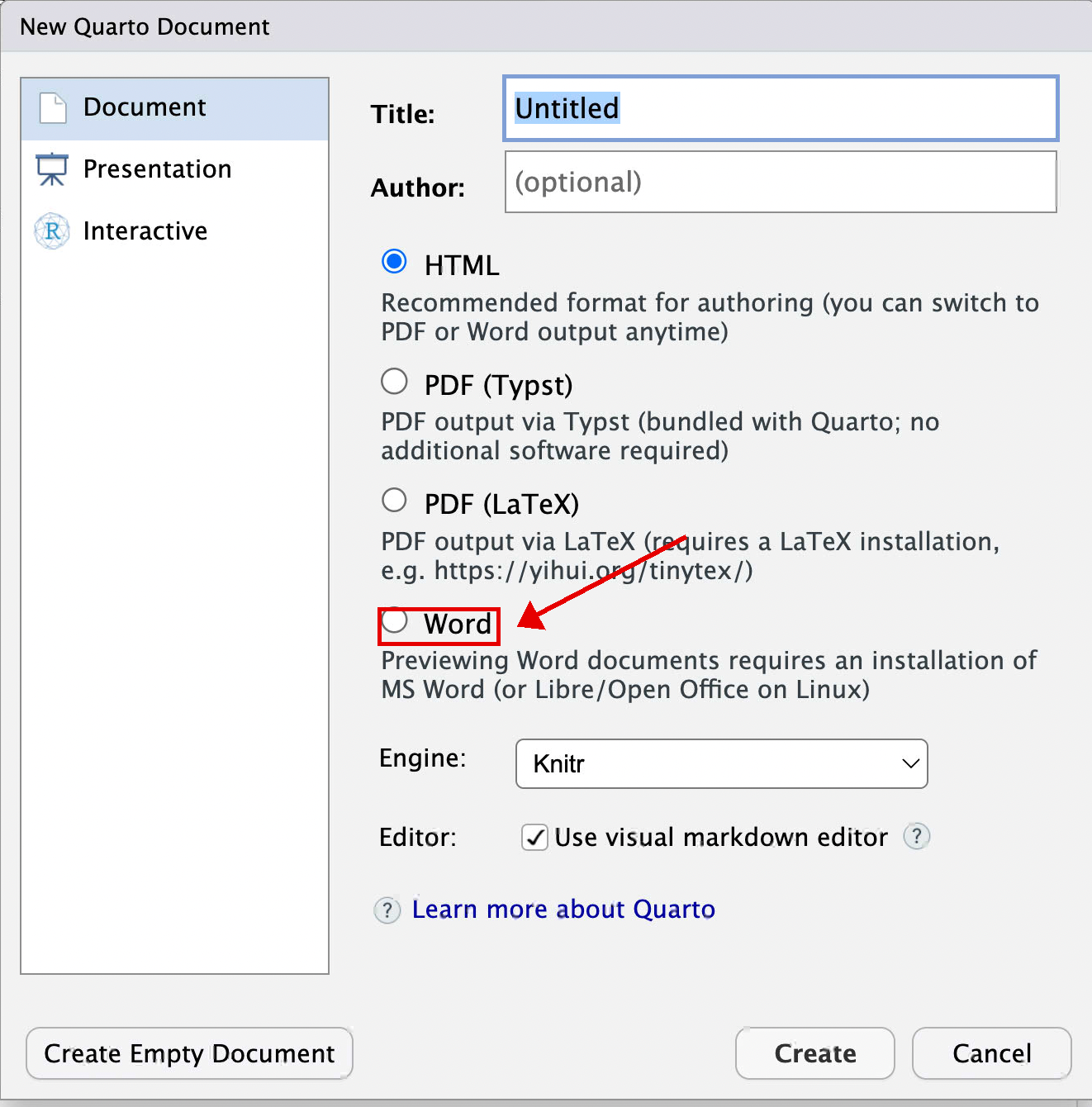
- Step 2: Select
Wordand clickCreate.
- Step 3: Click the
Renderbutton. You may be asked to save the.qmdfile to a location. Save it to your Downloads folder. RStudio will then render the.qmddocument and generate a.docxfile named “untitled.docx” in the same location.
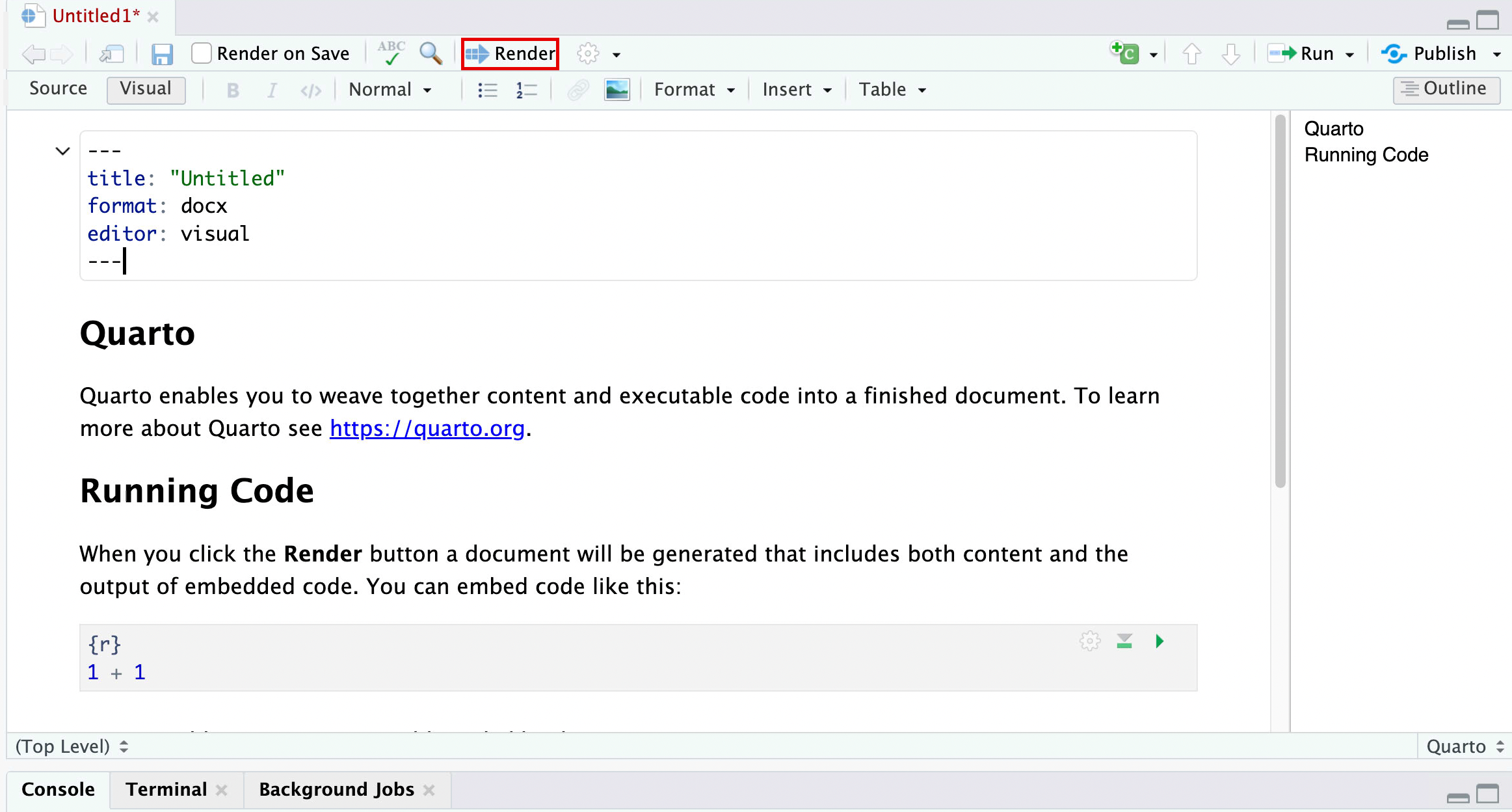
- Step 4: The
.docxfile should look like the example below. If you can generate the.docxfile without issues, Quarto has successfully run on your computer!
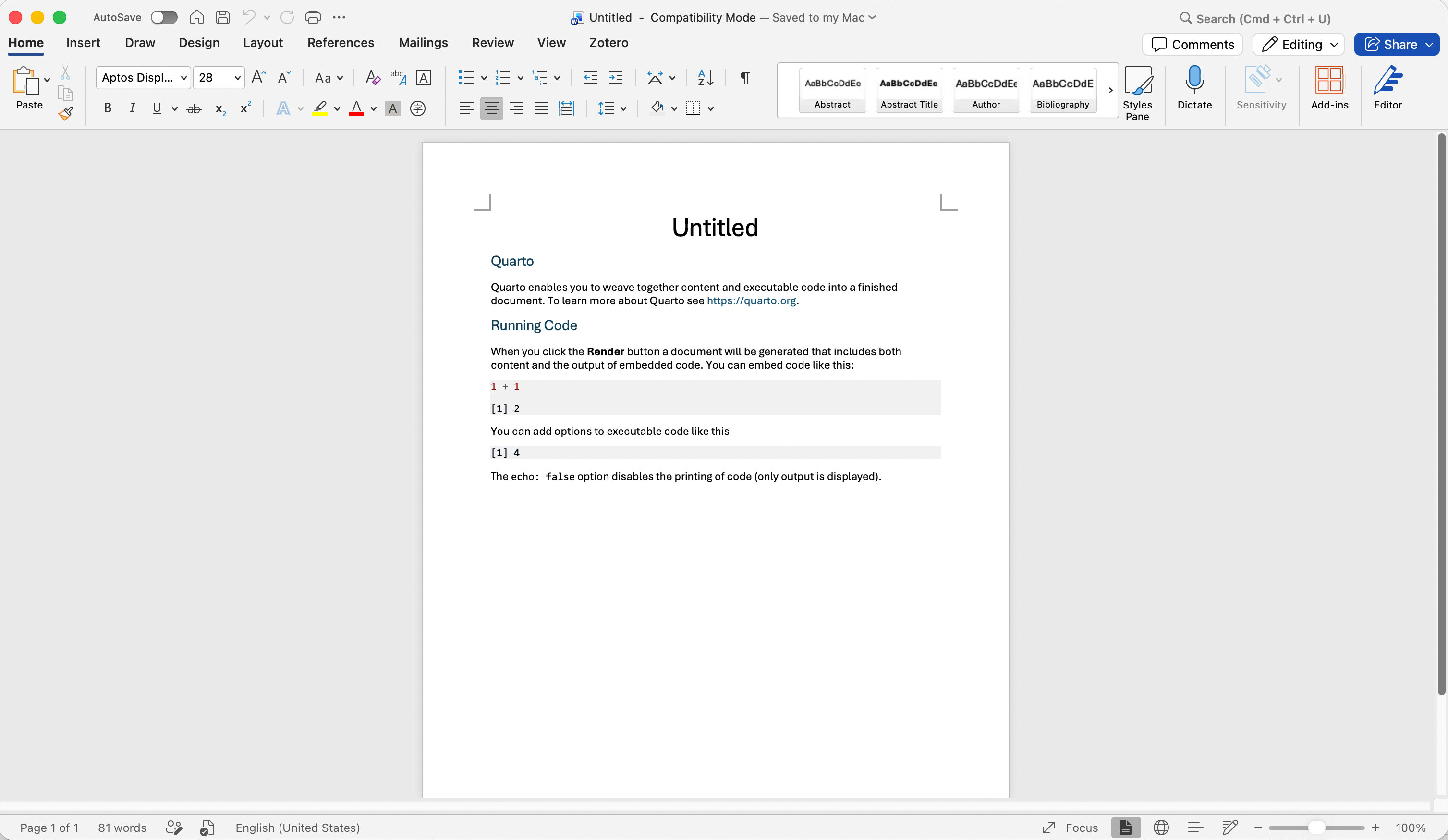
Note: If you see a banner prompting that rmarkdown is not installed, click the Install button to install it. In the future, if you see a similar banner stating “Package XXX required but is not installed”, click the Install button to install the missing package, as it is needed for the current Quarto file to work properly.

4 Recommended Settings for RStudio
After you have everything installed, it is highly recommended to set up RStudio by following my next tutorial here.